
Pingtumi with AI
Make a Place Collection with Claude, ChatGPT or Gemini
Add Pingtumi to your AI assistant once. Then ask something like “Make me a Pingtumi list of 10 family-friendly restaurants near Yosemite” and get back a polished Pingtumi collection link you can share with anyone, as a list, itinerary, timeline or tour.
https://mcp.pingtumi.com/place-collections- Free to try. No Pingtumi account needed.
- Keep it free. Claim your collection within 7 days to keep and edit it.
 Claude
 ChatGPT
 Gemini
How it works
- You describe the places you want in your AI chat.
- The AI picks real places and sends them to Pingtumi, which checks each one on Google Maps.
- You get two links: a public link to share, and a private claim link.
- Open the claim link within 7 days and sign in (or create a free account) to keep the collection and edit it. The public link stays the same.
Add it to your AI
Pick your assistant. You only do this once, and you’ll need this server URL:
https://mcp.pingtumi.com/place-collectionsWorks in the Claude desktop app and on claude.ai, on every plan. The Free plan allows one custom connector.
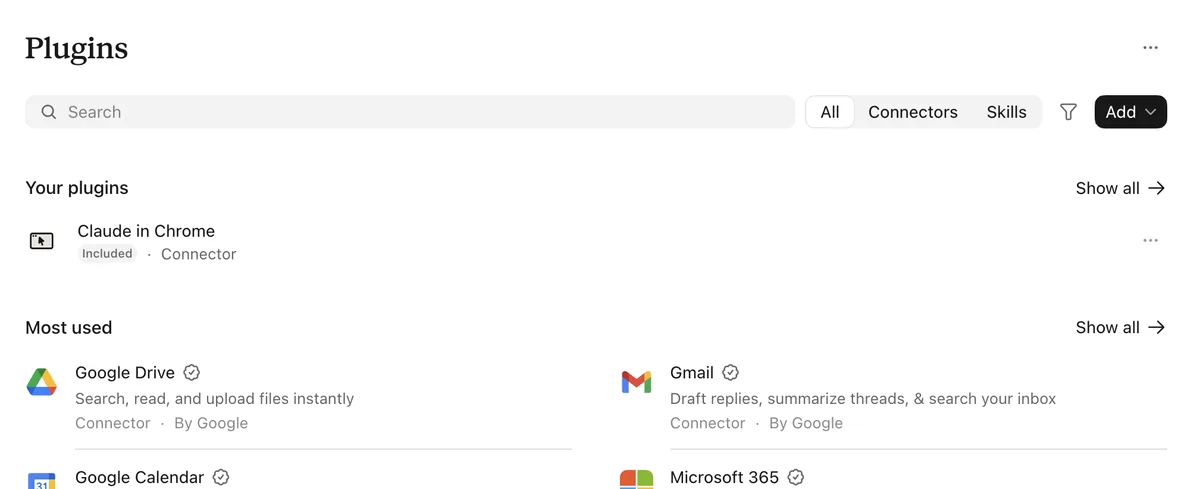
- Tap Plugins in the left sidebar. On the Plugins page, tap Add in the upper right, then Add custom connector.
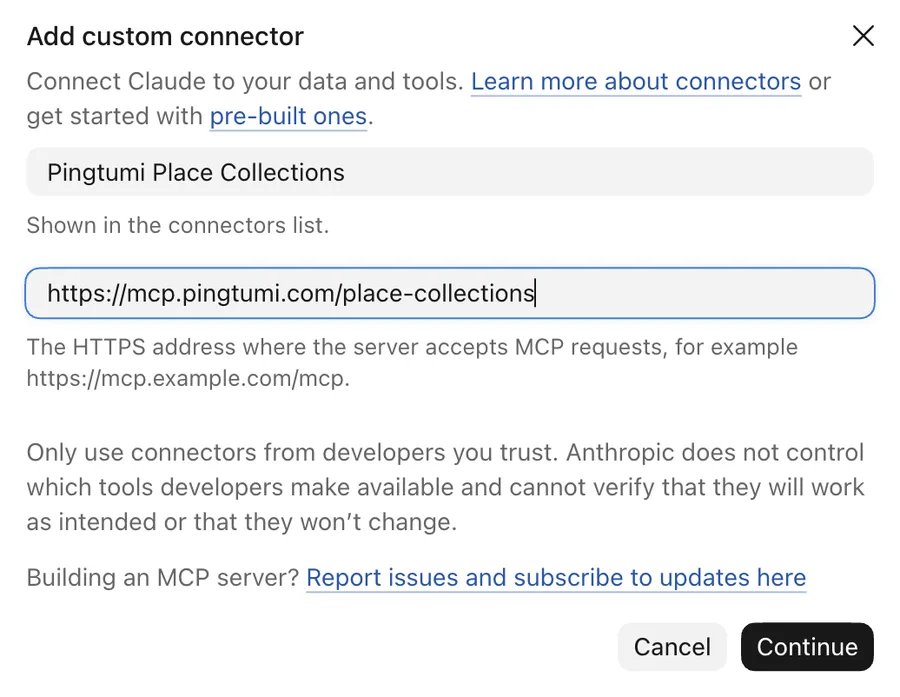
- Name it Pingtumi Place Collections, paste the server URL as the MCP server URL, and tap Continue.
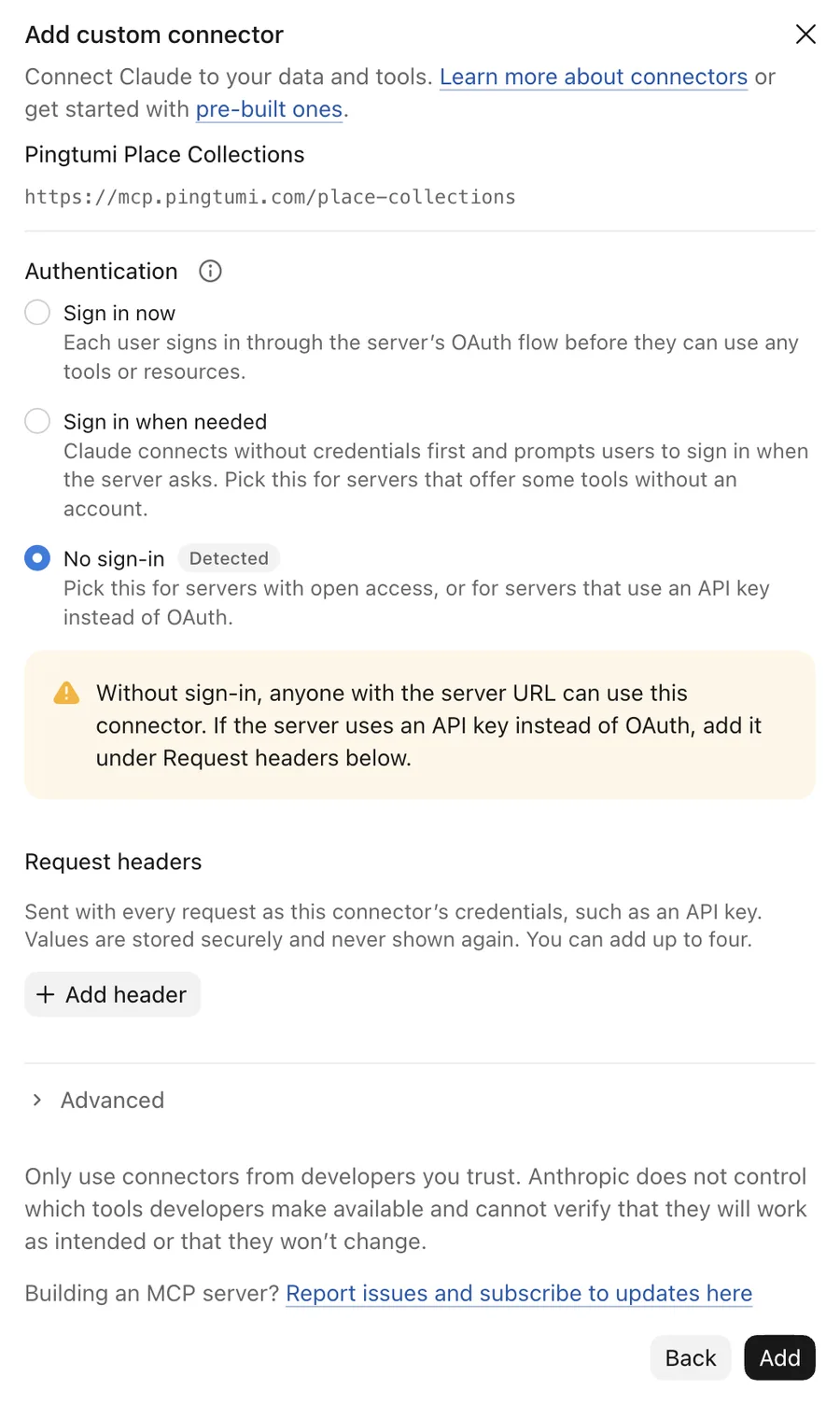
- Under Authentication, leave No sign-in selected, then tap Add.
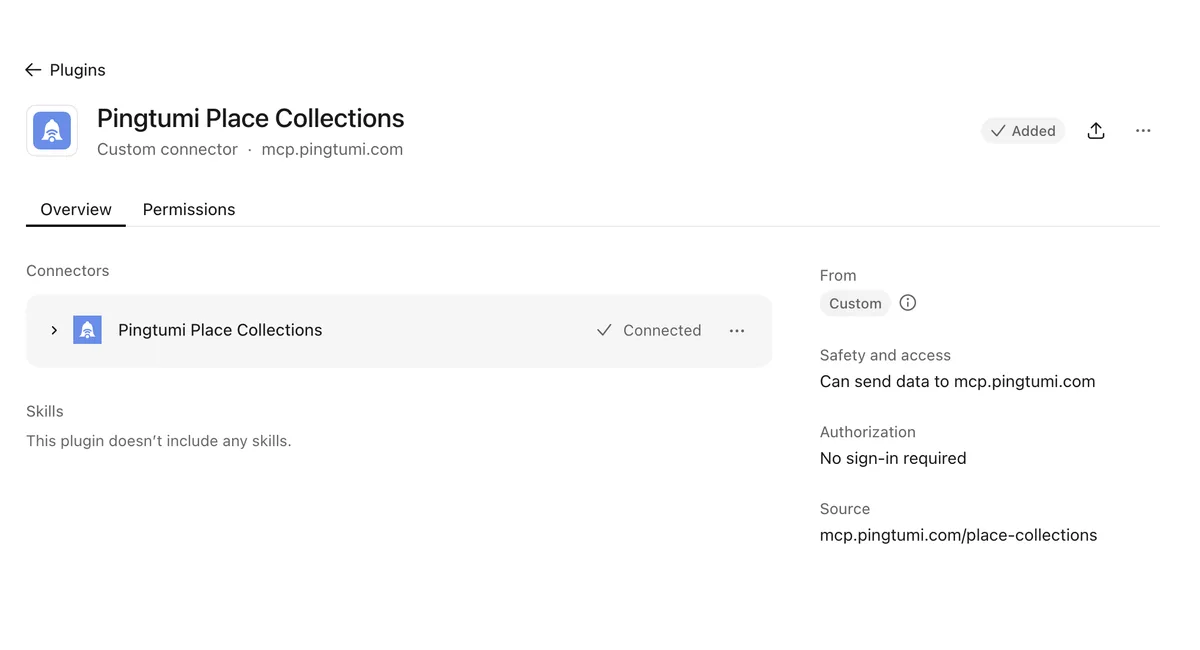
- Pingtumi Place Collections now shows as Connected. Start a new chat and ask for a collection, for example “Use Pingtumi to make a walking tour of 8 must-see stops in San Francisco.”
An owner adds the connector once under Organization settings, Connectors, then members turn it on.
These steps are for the ChatGPT desktop app.
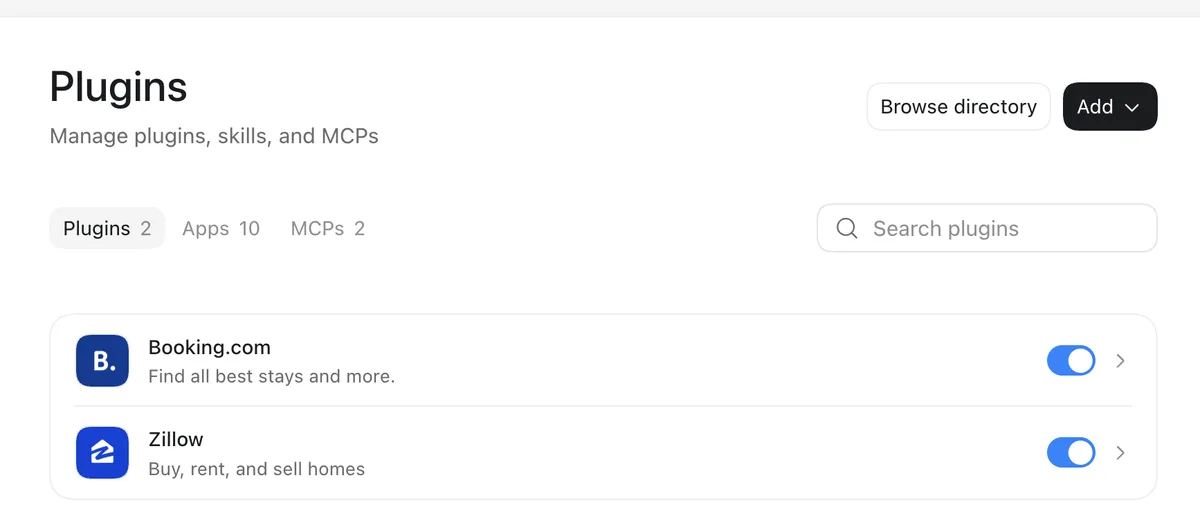
- Open Settings, then Plugins under Integrations. Click Add in the upper right.
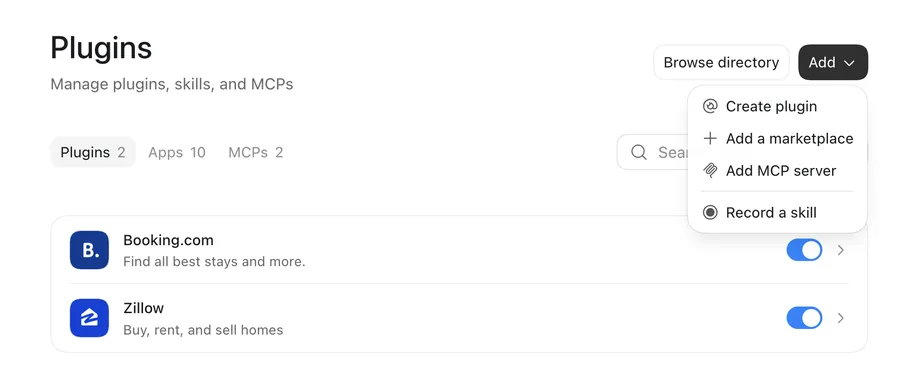
- Choose Add MCP server.
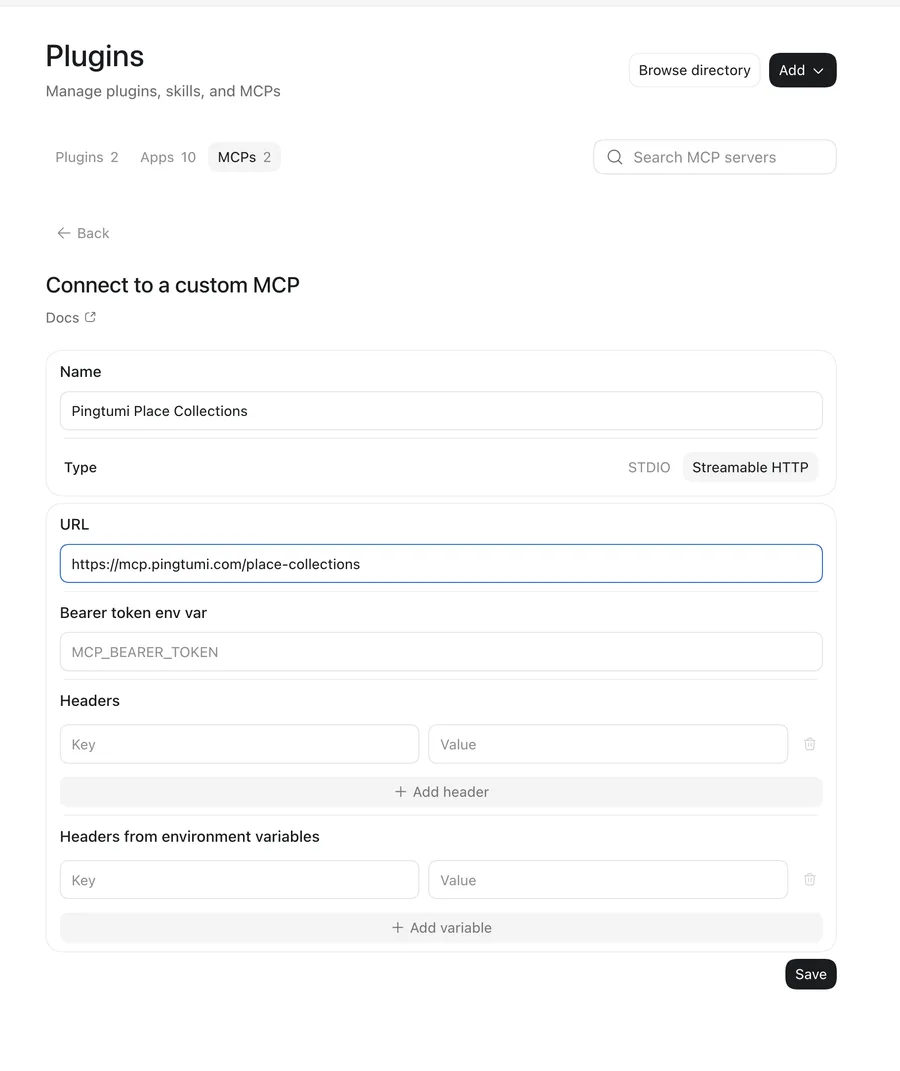
- Name it Pingtumi Place Collections, set Type to Streamable HTTP, paste the server URL, leave the token and headers empty, and click Save.
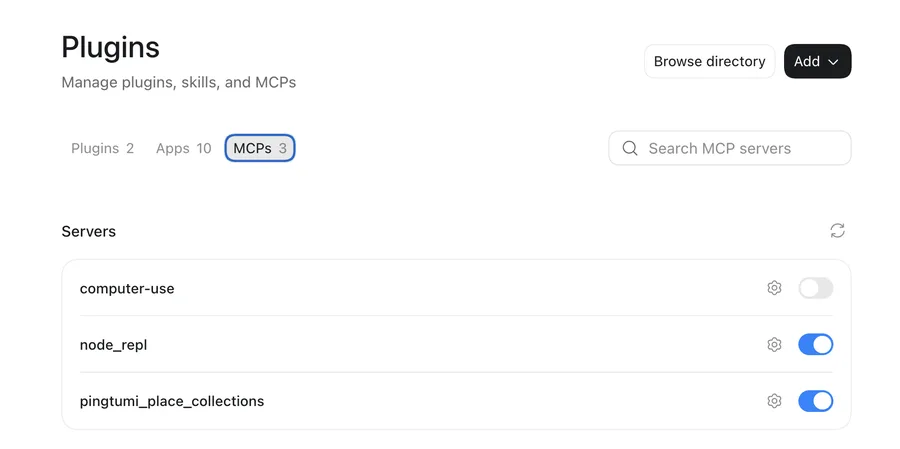
- It appears on the MCPs tab, switched on.
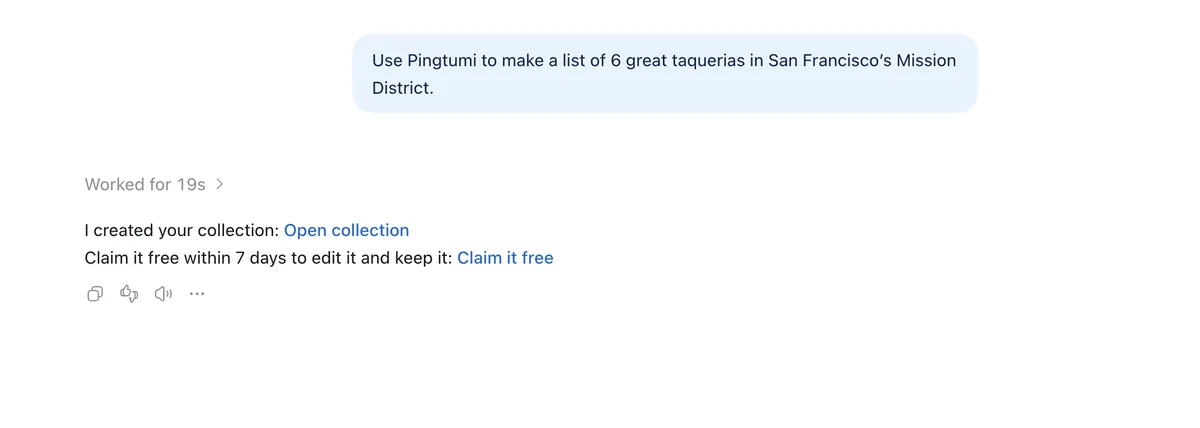
- Start a new chat and ask, for example “Use Pingtumi to make a list of 6 great taquerias in San Francisco’s Mission District.” ChatGPT replies with your collection link and a link to claim it.
Works on gemini.google.com with a personal Google account in the US. Add it on the web once, and it also works in the Gemini mobile app.
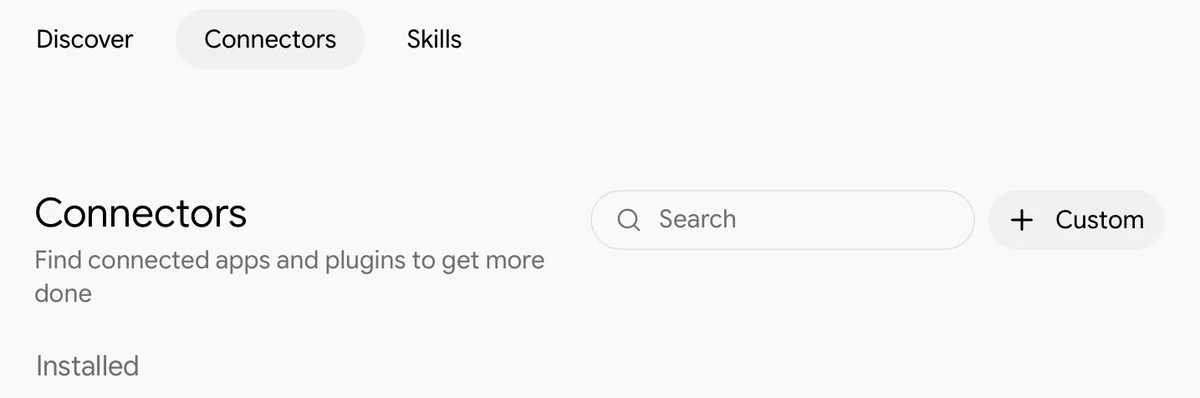
- Tap Customize in the left sidebar and open the Connectors tab. Then tap + Custom in the upper right.
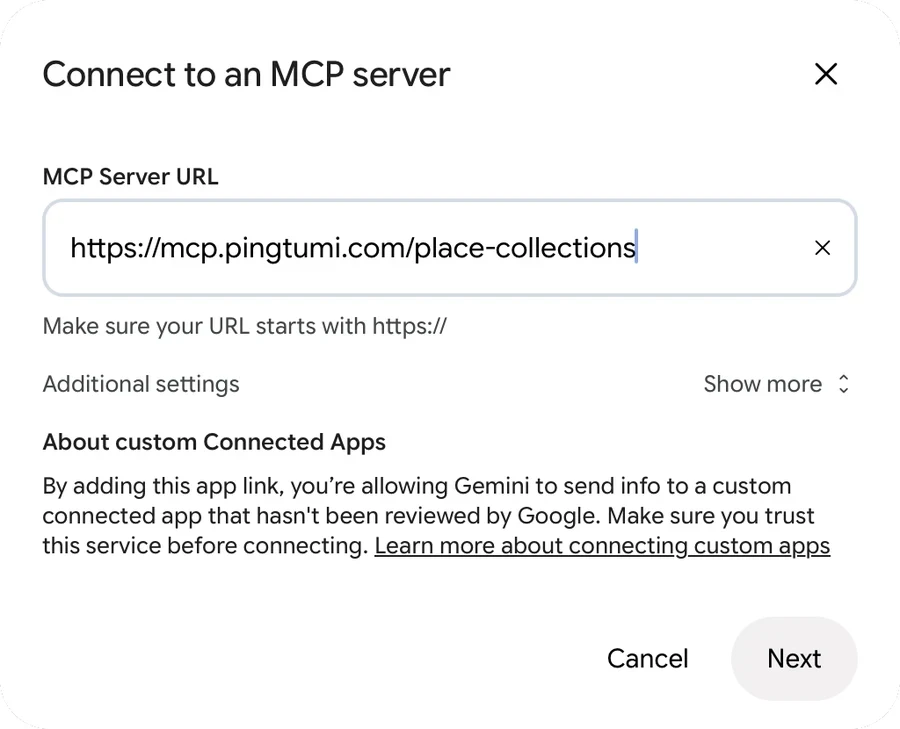
- Paste the server URL as the MCP Server URL, leave Additional settings as they are, and tap Next.
- Check I understand and accept the security and privacy risks, then tap Connect.
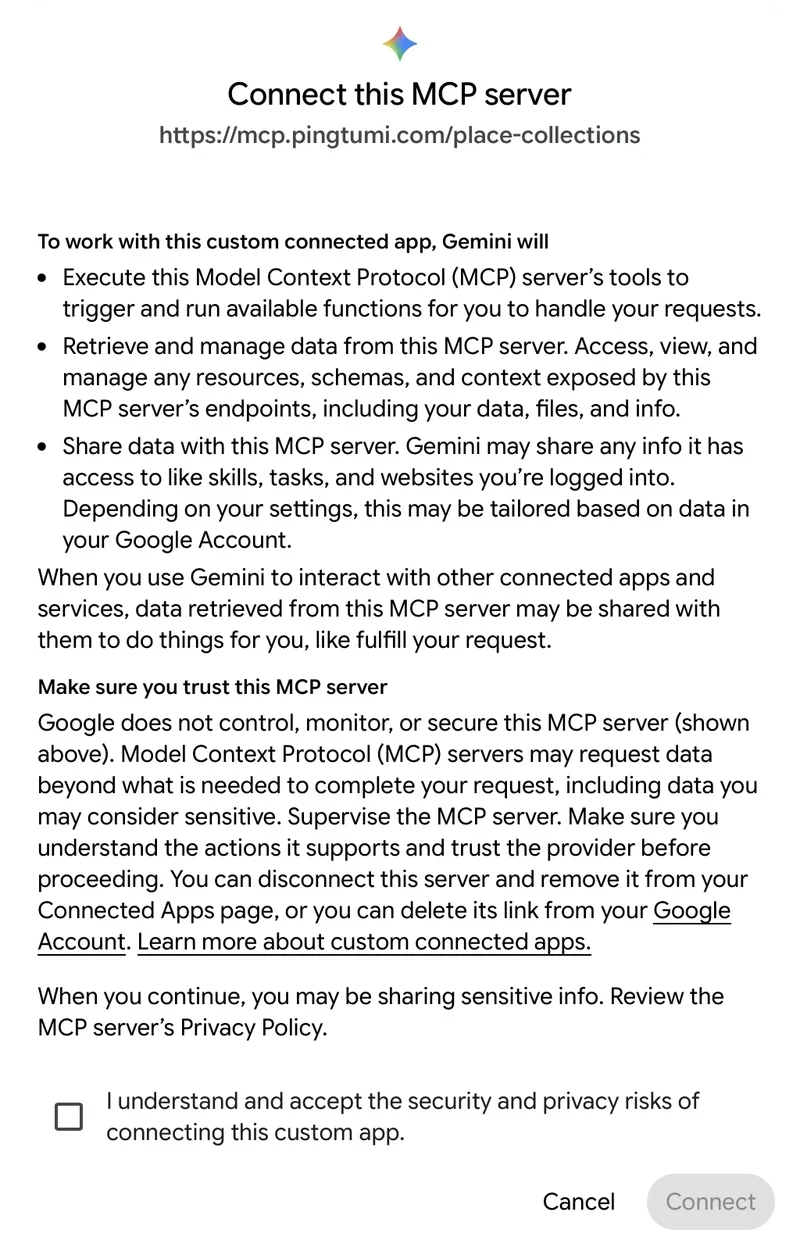
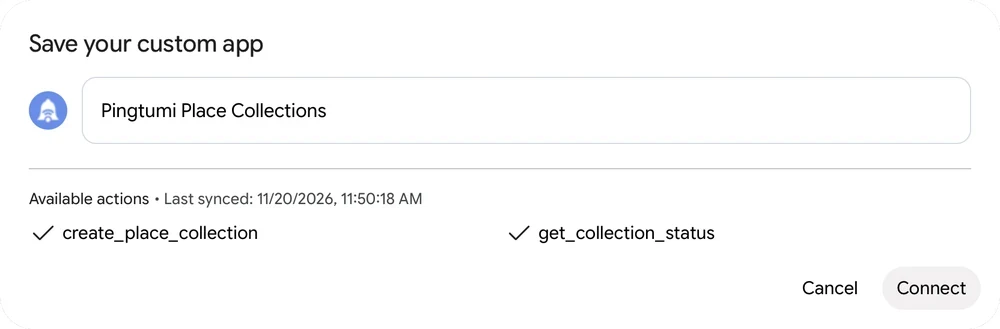
- Gemini names it Pingtumi Place Collections and lists its two actions. Tap Connect.
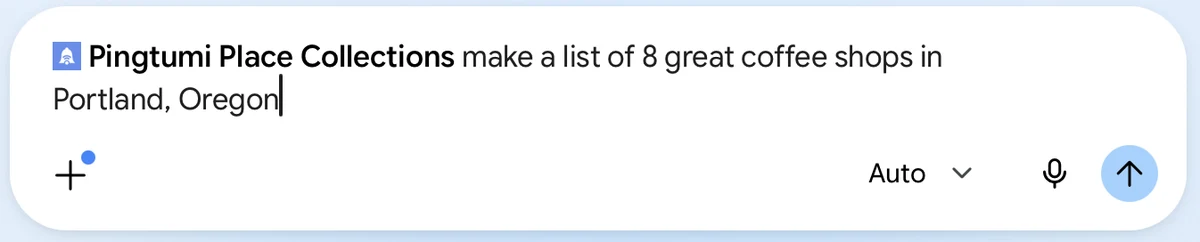
- Start a new chat, type @, pick Pingtumi Place Collections, and ask for a collection, for example “make a list of 8 great coffee shops in Portland, Oregon.”
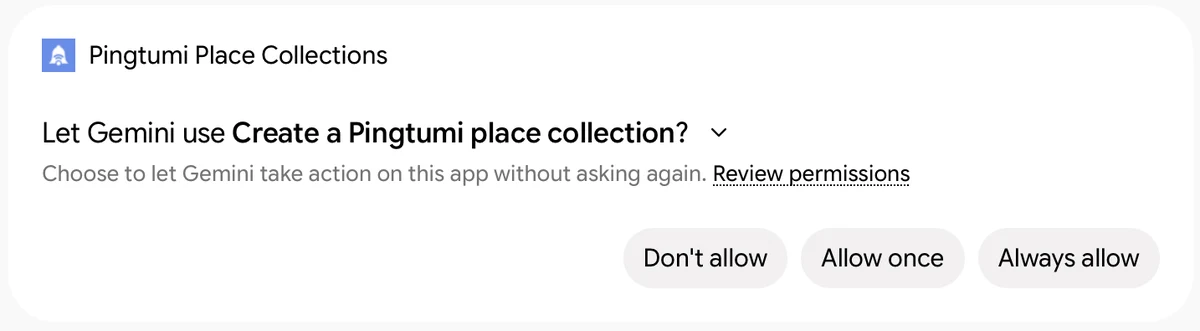
- The first time, Gemini asks to use Pingtumi. Tap Always allow (or Allow once). Gemini replies with your collection link and a link to claim it.
Write a good request
Say what kind of places you want, where, and which display mode to use: list, itinerary, timeline or tour. Mention Pingtumi so the AI uses it. If you don’t name a mode, Pingtumi picks one from your places and dates.
List
“Make me a Pingtumi list of 10 family-friendly restaurants near Yosemite, with a note on why each is good for kids.”
A list shows the places in the order the AI picks. It suits recommendations.
Itinerary
“Plan Saturday, March 14 in San Francisco for two adults as a Pingtumi itinerary: breakfast at 8:30, three sights, lunch, and dinner at 7.”
Dates and times make an itinerary grouped by day. Give the date, or the AI will ask for it.
Timeline
“Create a Pingtumi timeline of the places where the California Gold Rush unfolded, with the year each became important.”
Places that belong to points in time become a timeline in date order.
Tour
“Make a Pingtumi walking tour of Boston's Freedom Trail with the stops in order.”
Ordered stops become a tour with numbered stops on a map. Say walking or driving.
Tips
- Name the town or neighborhood so each place can be found on Google Maps.
- Ask for 2 to 25 places.
- For an itinerary, give the date and start time, and your time zone if it isn’t obvious.
- If a place is left out because it couldn’t be found or is closed, ask the AI to replace it.
- Want a reminder before the claim link expires? Give the AI your email and ask for one. Pingtumi sends one email only.
What you get back
Here’s a real request in ChatGPT and its reply. Claude answers the same way.
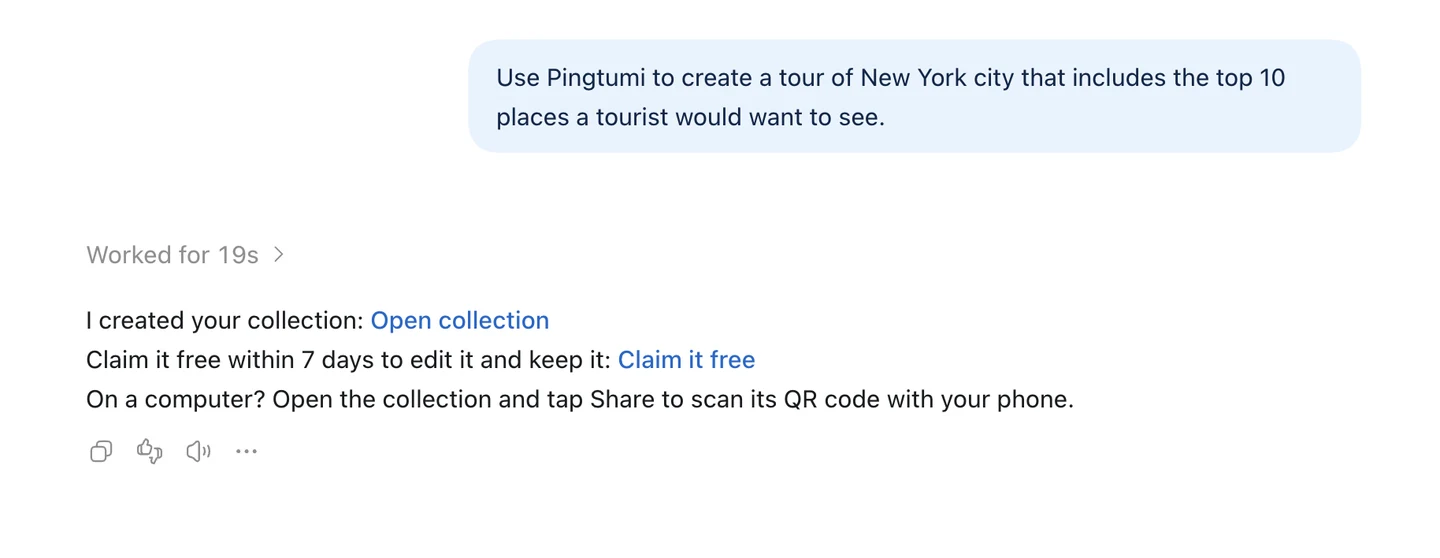
- Open collection is the public link. Share it with anyone. On an iPhone it can also open the Pingtumi App Clip.
- Claim it free is private to you. Open it within 7 days to keep the collection and edit it in your Pingtumi account.
- On a computer, open the collection and tap Share to scan its QR code with your phone.
Claim your collection
- Open the Claim it free link the AI gave you. Keep it private: whoever claims it owns the collection.
- If you’re signed in to Pingtumi, choose Add this collection to my account. Otherwise sign in or create a free account with Apple, Google or email.
- The collection moves to your account, its places join your library (without duplicates), and the public link keeps working.
An unclaimed collection stays viewable as a read-only page for 90 more days, then expires.
Troubleshooting
The AI answers in chat instead of making a collection. Start your request with “Use Pingtumi to…”, and check that the Pingtumi connector is turned on for that chat.
Some places are missing. Pingtumi leaves out places it can’t find on Google Maps or that are closed. Ask the AI to replace them, and include the town or neighborhood.
“Claim your first collection to create another.” Without an account, each chat can have one unclaimed collection at a time. Claim it with the link from earlier in the chat, then ask again.
The claim link has expired. Claim links work for 7 days. After that the collection stays viewable but can’t be claimed, so ask the AI to make it again.
FAQ
Does it cost anything?
Making a collection with AI and claiming it are free.
Can I make more than one?
Without an account, each chat can have one unclaimed collection at a time. Claim it, and you can keep making more.
Can people with the public link edit it?
No. The public link is view-only. Only the person who claims the collection can edit it.
What does Pingtumi receive from my AI chat?
Only what the AI sends to make the collection: its title, description, places and notes, and an email address if you ask for a reminder. See the Privacy Policy.
Need help?
Email contact@pingtumi.com.